 Notchbox
iPhone or iPad
In Safari.
'%3e%3cg%20transform='translate(120%20108)%20scale(1.3)%20translate(-120%20-112)'%3e%3crect%20x='18'%20y='-40'%20width='204'%20height='186'%20rx='30'%20fill='%23141418'%20stroke='%23fff'%20stroke-opacity='.18'%20stroke-width='2'/%3e%3crect%20x='40'%20y='12'%20width='110'%20height='10'%20rx='5'%20fill='%23fff'%20fill-opacity='0.1'/%3e%3crect%20x='40'%20y='30'%20width='150'%20height='7'%20rx='3.5'%20fill='%23fff'%20fill-opacity='0.07'/%3e%3crect%20x='40'%20y='43'%20width='128'%20height='7'%20rx='3.5'%20fill='%23fff'%20fill-opacity='0.07'/%3e%3crect%20x='34'%20y='60'%20width='172'%20height='32'%20rx='16'%20fill='%23fff'%20fill-opacity='.08'/%3e%3crect%20x='86'%20y='72'%20width='68'%20height='8'%20rx='4'%20fill='%23fff'%20fill-opacity='0.22'/%3e%3cpath%20d='M53%20109%20L44%20118%20L53%20127'%20stroke='%23fff'%20stroke-opacity='0.55'%20stroke-width='2.5'%20fill='none'%20stroke-linecap='round'%20stroke-linejoin='round'/%3e%3cpath%20d='M79%20109%20L88%20118%20L79%20127'%20stroke='%23fff'%20stroke-opacity='0.28'%20stroke-width='2.5'%20fill='none'%20stroke-linecap='round'%20stroke-linejoin='round'/%3e%3ccircle%20cx='120'%20cy='117'%20r='18'%20fill='%234ECDC4'%20opacity='.35'%20filter='url(%23blur)'/%3e%3ccircle%20cx='120'%20cy='117'%20r='16'%20fill='%234ECDC4'%20fill-opacity='.14'%20stroke='%234ECDC4'%20stroke-opacity='.8'%20stroke-width='2'/%3e%3cpath%20d='M114%20113%20H110%20V130%20H130%20V113%20H126%20M120%20103%20V121%20M115%20108%20L120%20103%20L125%20108'%20stroke='%234ECDC4'%20stroke-width='2.5'%20fill='none'%20stroke-linecap='round'%20stroke-linejoin='round'/%3e%3cpath%20d='M150%20111%20Q155%20109%20160%20112%20V127%20Q155%20124%20150%20126%20Z%20M170%20111%20Q165%20109%20160%20112%20V127%20Q165%20124%20170%20126%20Z'%20stroke='%23fff'%20stroke-opacity='0.55'%20stroke-width='2.5'%20fill='none'%20stroke-linecap='round'%20stroke-linejoin='round'/%3e%3crect%20x='185'%20y='113'%20width='13'%20height='13'%20rx='3'%20stroke='%23fff'%20stroke-opacity='0.55'%20stroke-width='2.5'%20fill='none'%20stroke-linecap='round'%20stroke-linejoin='round'/%3e%3cpath%20d='M189%20109%20H199%20Q202%20109%20202%20112%20V122'%20stroke='%23fff'%20stroke-opacity='0.55'%20stroke-width='2.5'%20fill='none'%20stroke-linecap='round'%20stroke-linejoin='round'/%3e%3crect%20x='85'%20y='138'%20width='70'%20height='4'%20rx='2'%20fill='%23fff'%20fill-opacity='.45'/%3e%3c/g%3e%3c/g%3e%3crect%20x='.5'%20y='.5'%20width='239'%20height='159'%20rx='19.5'%20fill='none'%20stroke='%23fff'%20stroke-opacity='.08'/%3e%3c/svg%3e) Tap Share.
Tap Share. Tap Add to Home Screen.
 Tap Add.
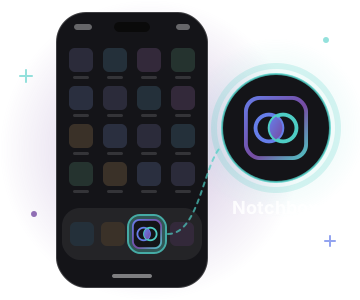
Ditch the browser. Add Notchbox to your home screen or dock and it opens in its own window, straight to your vault. Same app, same encryption, no app store.
'/%3e%3crect%20x='16'%20y='14'%20width='88'%20height='68'%20rx='10'%20fill='%23141418'%20stroke='%23fff'%20stroke-opacity='.18'%20stroke-width='2'/%3e%3cline%20x1='17'%20y1='32'%20x2='103'%20y2='32'%20stroke='%23fff'%20stroke-opacity='.12'%20stroke-width='2'/%3e%3csvg%20x='24'%20y='18'%20width='10'%20height='10'%20viewBox='0%200%20100%20100'%3e%3crect%20width='100'%20height='100'%20rx='24'%20fill='url(%23lg)'/%3e%3crect%20x='6'%20y='6'%20width='88'%20height='88'%20rx='19'%20fill='%23141418'/%3e%3ccircle%20cx='39'%20cy='50'%20r='21'%20fill='none'%20stroke='%23667EEA'%20stroke-width='6'/%3e%3ccircle%20cx='61'%20cy='50'%20r='21'%20fill='none'%20stroke='%234ECDC4'%20stroke-width='6'/%3e%3cpath%20d='M50%2032.2%20A21%2021%200%200%201%2050%2067.8%20A21%2021%200%200%201%2050%2032.2%20Z'%20fill='url(%23lp)'/%3e%3c/svg%3e%3ccircle%20cx='82'%20cy='23'%20r='2.2'%20fill='%23fff'%20fill-opacity='.4'/%3e%3ccircle%20cx='89'%20cy='23'%20r='2.2'%20fill='%23fff'%20fill-opacity='.4'/%3e%3ccircle%20cx='96'%20cy='23'%20r='2.2'%20fill='%23fff'%20fill-opacity='.4'/%3e%3crect%20x='25'%20y='41'%20width='30'%20height='32'%20rx='6'%20fill='url(%23lp)'%20fill-opacity='.55'/%3e%3crect%20x='62'%20y='43'%20width='32'%20height='6'%20rx='3'%20fill='%23fff'%20fill-opacity='0.22'/%3e%3crect%20x='62'%20y='55'%20width='24'%20height='6'%20rx='3'%20fill='%23fff'%20fill-opacity='0.14'/%3e%3crect%20x='62'%20y='67'%20width='28'%20height='6'%20rx='3'%20fill='%23fff'%20fill-opacity='0.14'/%3e%3c/svg%3e)
No tabs, no address bar. Just your vault.
'/%3e%3crect%20x='45'%20y='33'%20width='30'%20height='30'%20rx='10'%20fill='none'%20stroke='%234ECDC4'%20stroke-opacity='.8'%20stroke-width='2'/%3e%3csvg%20x='49'%20y='37'%20width='22'%20height='22'%20viewBox='0%200%20100%20100'%3e%3crect%20width='100'%20height='100'%20rx='24'%20fill='url(%23lg)'/%3e%3crect%20x='6'%20y='6'%20width='88'%20height='88'%20rx='19'%20fill='%23141418'/%3e%3ccircle%20cx='39'%20cy='50'%20r='21'%20fill='none'%20stroke='%23667EEA'%20stroke-width='6'/%3e%3ccircle%20cx='61'%20cy='50'%20r='21'%20fill='none'%20stroke='%234ECDC4'%20stroke-width='6'/%3e%3cpath%20d='M50%2032.2%20A21%2021%200%200%201%2050%2067.8%20A21%2021%200%200%201%2050%2032.2%20Z'%20fill='url(%23lp)'/%3e%3c/svg%3e%3c/svg%3e)
Or your dock, next to your other apps.
'/%3e%3cpath%20d='M84%2036%20L101%2042%20V56%20C101%2068%2093%2076%2084%2080%20C75%2076%2067%2068%2067%2056%20V42%20Z'%20fill='%23141418'%20stroke='%234ECDC4'%20stroke-width='2.5'%20stroke-linejoin='round'/%3e%3cpath%20d='M76%2058%20L82%2064%20L93%2052'%20stroke='%234ECDC4'%20stroke-width='2.5'%20fill='none'%20stroke-linecap='round'%20stroke-linejoin='round'/%3e%3c/svg%3e)
Safari can clear a website's stored data after 7 days away. An installed app is exempt.
Nothing else changes: you still unlock every time, your records stay encrypted exactly as before, and it still needs a connection to open.
Start on the sign-in page, not this one, then follow the steps for your device. You don't need to sign in first.
In Safari.
Tap Share.Tap Add to Home Screen.Tap Add.In Chrome.
'%3e%3cg%20transform='translate(120%2066)%20scale(1.3)%20translate(-140%20-60)'%3e%3cg%20opacity='1'%3e%3crect%20x='18'%20y='12'%20width='204'%20height='190'%20rx='30'%20fill='%23141418'%20stroke='%23fff'%20stroke-opacity='.18'%20stroke-width='2'/%3e%3crect%20x='38'%20y='25'%20width='26'%20height='6'%20rx='3'%20fill='%23fff'%20fill-opacity='0.4'/%3e%3crect%20x='178'%20y='25'%20width='10'%20height='6'%20rx='3'%20fill='%23fff'%20fill-opacity='0.4'/%3e%3crect%20x='192'%20y='25'%20width='12'%20height='6'%20rx='3'%20fill='%23fff'%20fill-opacity='0.4'/%3e%3crect%20x='32'%20y='44'%20width='122'%20height='32'%20rx='16'%20fill='%23fff'%20fill-opacity='.08'/%3e%3ccircle%20cx='48'%20cy='60'%20r='4'%20fill='none'%20stroke='%23fff'%20stroke-opacity='.45'%20stroke-width='2'/%3e%3crect%20x='60'%20y='56'%20width='70'%20height='8'%20rx='4'%20fill='%23fff'%20fill-opacity='0.22'/%3e%3crect%20x='162'%20y='51'%20width='18'%20height='18'%20rx='4'%20stroke='%23fff'%20stroke-opacity='0.55'%20stroke-width='2.5'%20fill='none'%20stroke-linecap='round'%20stroke-linejoin='round'/%3e%3crect%20x='36'%20y='92'%20width='120'%20height='10'%20rx='5'%20fill='%23fff'%20fill-opacity='0.1'/%3e%3crect%20x='36'%20y='110'%20width='160'%20height='7'%20rx='3.5'%20fill='%23fff'%20fill-opacity='0.07'/%3e%3crect%20x='36'%20y='123'%20width='140'%20height='7'%20rx='3.5'%20fill='%23fff'%20fill-opacity='0.07'/%3e%3crect%20x='36'%20y='138'%20width='168'%20height='40'%20rx='10'%20fill='%23fff'%20fill-opacity='.05'/%3e%3c/g%3e%3ccircle%20cx='201'%20cy='60'%20r='16'%20fill='%234ECDC4'%20opacity='.35'%20filter='url(%23blur)'/%3e%3ccircle%20cx='201'%20cy='60'%20r='14'%20fill='%234ECDC4'%20fill-opacity='.14'%20stroke='%234ECDC4'%20stroke-opacity='.8'%20stroke-width='2'/%3e%3ccircle%20cx='201'%20cy='52'%20r='2.8'%20fill='%234ECDC4'%20fill-opacity='1'/%3e%3ccircle%20cx='201'%20cy='60'%20r='2.8'%20fill='%234ECDC4'%20fill-opacity='1'/%3e%3ccircle%20cx='201'%20cy='68'%20r='2.8'%20fill='%234ECDC4'%20fill-opacity='1'/%3e%3c/g%3e%3c/g%3e%3crect%20x='.5'%20y='.5'%20width='239'%20height='159'%20rx='19.5'%20fill='none'%20stroke='%23fff'%20stroke-opacity='.08'/%3e%3c/svg%3e) Tap the ⋮ menu.
Tap the ⋮ menu. Tap Install app.
 Tap Install.
Windows, Mac, Linux or ChromeOS.
'%3e%3cg%20transform='translate(120%2072)%20scale(1.35)%20translate(-150%20-66)'%3e%3crect%20x='-20'%20y='18'%20width='244'%20height='170'%20rx='12'%20fill='%23141418'%20stroke='%23fff'%20stroke-opacity='.18'%20stroke-width='2'/%3e%3cpath%20d='M30%2046%20V34%20Q30%2026%2038%2026%20H132%20Q140%2026%20140%2034%20V46%20Z'%20fill='%23202028'/%3e%3csvg%20x='38'%20y='30'%20width='12'%20height='12'%20viewBox='0%200%20100%20100'%3e%3crect%20width='100'%20height='100'%20rx='24'%20fill='url(%23lg)'/%3e%3crect%20x='6'%20y='6'%20width='88'%20height='88'%20rx='19'%20fill='%23141418'/%3e%3ccircle%20cx='39'%20cy='50'%20r='21'%20fill='none'%20stroke='%23667EEA'%20stroke-width='6'/%3e%3ccircle%20cx='61'%20cy='50'%20r='21'%20fill='none'%20stroke='%234ECDC4'%20stroke-width='6'/%3e%3cpath%20d='M50%2032.2%20A21%2021%200%200%201%2050%2067.8%20A21%2021%200%200%201%2050%2032.2%20Z'%20fill='url(%23lp)'/%3e%3c/svg%3e%3crect%20x='56'%20y='33'%20width='58'%20height='6'%20rx='3'%20fill='%23fff'%20fill-opacity='0.3'/%3e%3cline%20x1='-20'%20y1='46'%20x2='224'%20y2='46'%20stroke='%23fff'%20stroke-opacity='.1'%20stroke-width='2'/%3e%3cpath%20d='M20%2066%20H8%20M13%2061%20L8%2066%20L13%2071'%20stroke='%23fff'%20stroke-opacity='0.55'%20stroke-width='2'%20fill='none'%20stroke-linecap='round'%20stroke-linejoin='round'/%3e%3cpath%20d='M44%2060%20A7%207%200%201%200%2045%2069%20M45%2057%20V62%20H40'%20stroke='%23fff'%20stroke-opacity='0.55'%20stroke-width='2'%20fill='none'%20stroke-linecap='round'%20stroke-linejoin='round'/%3e%3crect%20x='58'%20y='52'%20width='146'%20height='28'%20rx='14'%20fill='%23fff'%20fill-opacity='.08'/%3e%3crect%20x='68'%20y='62'%20width='8'%20height='7'%20rx='1.5'%20fill='%23fff'%20fill-opacity='.45'/%3e%3cpath%20d='M69.5%2062%20V60%20A2.5%202.5%200%200%201%2074.5%2060%20V62'%20stroke='%23fff'%20stroke-opacity='.45'%20stroke-width='1.6'%20fill='none'/%3e%3crect%20x='84'%20y='62'%20width='62'%20height='7'%20rx='3.5'%20fill='%23fff'%20fill-opacity='0.25'/%3e%3ccircle%20cx='186'%20cy='66'%20r='15'%20fill='%234ECDC4'%20opacity='.35'%20filter='url(%23blur)'/%3e%3ccircle%20cx='186'%20cy='66'%20r='13'%20fill='%234ECDC4'%20fill-opacity='.14'%20stroke='%234ECDC4'%20stroke-opacity='.8'%20stroke-width='2'/%3e%3crect%20x='178'%20y='59'%20width='17'%20height='12'%20rx='2'%20stroke='%234ECDC4'%20stroke-width='2'%20fill='none'%20stroke-linecap='round'%20stroke-linejoin='round'/%3e%3cpath%20d='M182%2075%20H191%20M186.5%2061.5%20V67%20M184%2064.5%20L186.5%2067%20L189%2064.5'%20stroke='%234ECDC4'%20stroke-width='2'%20fill='none'%20stroke-linecap='round'%20stroke-linejoin='round'/%3e%3ccircle%20cx='217'%20cy='59'%20r='2'%20fill='%23fff'%20fill-opacity='.45'/%3e%3ccircle%20cx='217'%20cy='66'%20r='2'%20fill='%23fff'%20fill-opacity='.45'/%3e%3ccircle%20cx='217'%20cy='73'%20r='2'%20fill='%23fff'%20fill-opacity='.45'/%3e%3crect%20x='14'%20y='100'%20width='120'%20height='10'%20rx='5'%20fill='%23fff'%20fill-opacity='0.1'/%3e%3crect%20x='14'%20y='118'%20width='180'%20height='7'%20rx='3.5'%20fill='%23fff'%20fill-opacity='0.07'/%3e%3crect%20x='14'%20y='131'%20width='160'%20height='7'%20rx='3.5'%20fill='%23fff'%20fill-opacity='0.07'/%3e%3crect%20x='14'%20y='144'%20width='170'%20height='7'%20rx='3.5'%20fill='%23fff'%20fill-opacity='0.07'/%3e%3c/g%3e%3c/g%3e%3crect%20x='.5'%20y='.5'%20width='239'%20height='159'%20rx='19.5'%20fill='none'%20stroke='%23fff'%20stroke-opacity='.08'/%3e%3c/svg%3e) Click the install icon in the address bar.
Click the install icon in the address bar.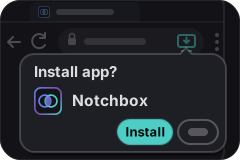 Click Install.
 It opens in its own window.
Safari 17 or later.
 Choose File → Add to Dock.
 Click Add.
 Open it from your Dock.
Firefox can't install apps. Open Notchbox in one of the browsers above.